Task 5.1: Binary Counter with Button
Enhance Lab 5 by adding button control. Each button press increments the counter and displays the new value on LEDs.
Learning Objectives
By the end of this task, you will:
- 🎯 Combine button input with LED output
- 🎯 Implement counter increment on button events
- 🎯 Apply debouncing in event-driven code
- 🎯 Manage state transitions in firmware
- 🎯 Build interactive embedded applications
Prerequisites
- ✅ Complete Lab 5 (binary counter)
- ✅ Complete Lab 4 (software debouncing)
- ✅ Understand button press detection
Hardware Required
| Component | Details |
|---|---|
| Microcontroller | STM32F407VG |
| Button | PA0 |
| LEDs | PD12-PD15 (counter display) |
Theory: Event-Driven Updates
Instead of continuous counting, we now:
Loop forever:
  if (button pressed before):
    ├─ Debounce press
    ├─ Confirm real press
    ├─ Increment counter
    ├─ Display new value
    ├─ Wait for release
    ├─ Debounce release
    └─ Ready for next press

  else:
    └─ Display current counter value
Demo
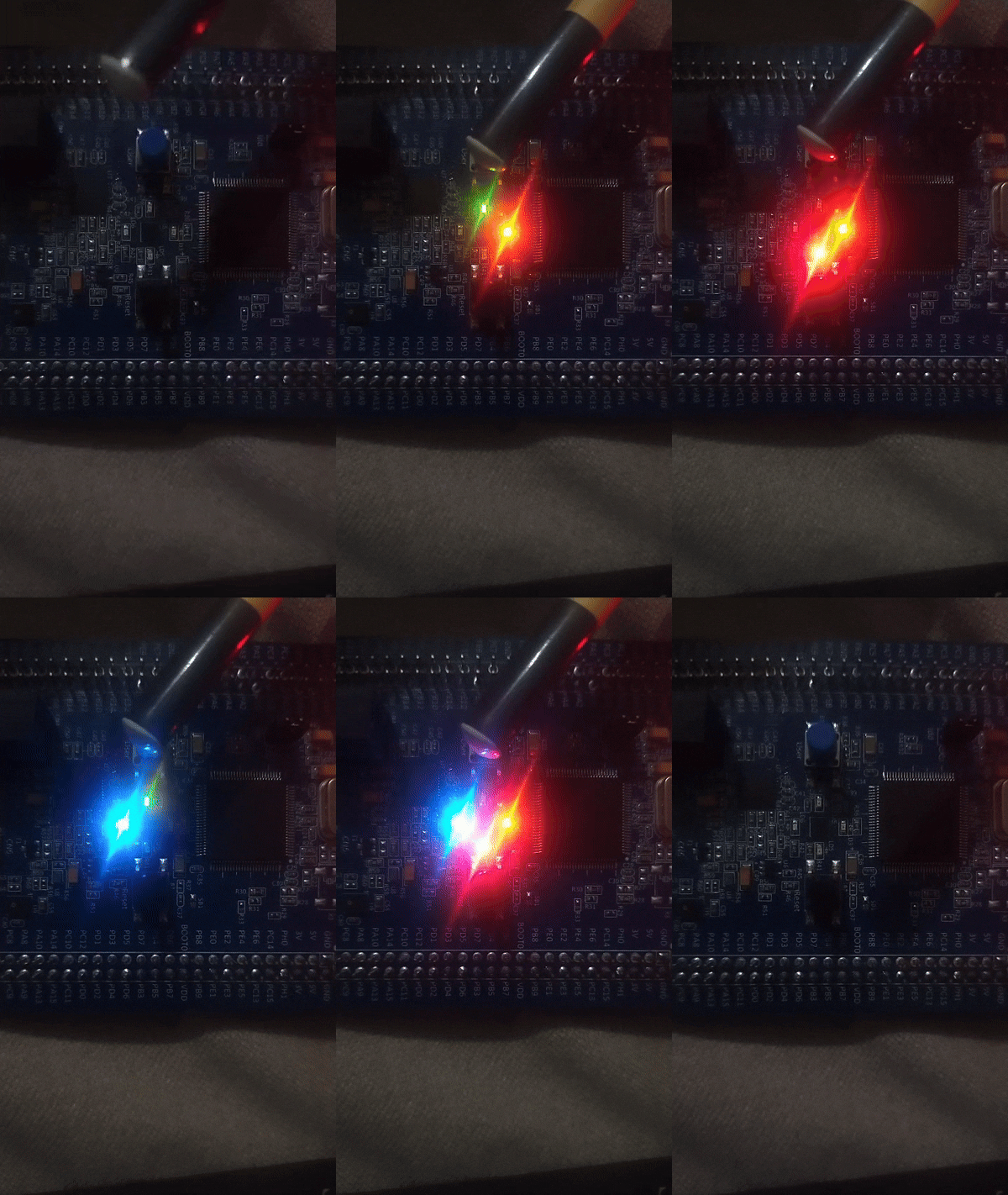
Press button: counter increments and displays new binary value on LEDs
Complete Code
#define RCC_BASE 0x40023800UL
#define RCC_AHB1ENR *(volatile unsigned int*)(RCC_BASE + 0x30U)

#define GPIO_D_BASE 0x40020C00UL
#define GPIOD_MODER *(volatile unsigned int*)(GPIO_D_BASE + 0x00U)
#define GPIOD_ODR   *(volatile unsigned int*)(GPIO_D_BASE + 0x14U)

#define GPIO_A_BASE 0x40020000UL
#define GPIOA_MODER *(volatile unsigned int*)(GPIO_A_BASE + 0x00U)
#define GPIOA_IDR   *(volatile unsigned int*)(GPIO_A_BASE + 0x10U)

void led_delay(void) {
    for (volatile int i = 0; i < 300000; i++);
}

void display_value(int value) {
    // Clear LED bits
    GPIOD_ODR &= ~(0xF << 12);
    // Display value (wraps at 16)
    GPIOD_ODR |= ((value & 0xF) << 12);
}

int main(void) {
    // Enable clocks
    RCC_AHB1ENR |= (1U << 0);  // GPIOA
    RCC_AHB1ENR |= (1U << 3);  // GPIOD

    // PA0 as input
    GPIOA_MODER &= ~(3U << 0);

    // PD12-PD15 as outputs
    GPIOD_MODER &= ~(0xFF << 24);
    GPIOD_MODER |= (0x55 << 24);

    int counter = 1;  // Start at 1
    display_value(counter);

    while (1) {
        // Wait for button press
        if (GPIOA_IDR & (1 << 0)) {
            led_delay();  // Debounce press

            // Confirm
            if (GPIOA_IDR & (1 << 0)) {
                counter++;  // Increment
                if (counter > 15) counter = 0;  // Wrap around

                display_value(counter);

                // Wait for release
                while (GPIOA_IDR & (1 << 0));
                led_delay();  // Debounce release
            }
        }
    }

    return 0;
}
Algorithm
Initialize: counter = 1, display on LEDs

Loop forever:
  if (button pressed):
    Debounce
    if (still pressed):
      counter = (counter + 1) % 16
      display_value(counter)
      Wait for release
      Debounce release
  else:
    Display current counter
Expected Output
Initial: LEDs show 0001 (decimal 1)

Button Press 1: LEDs show 0010 (decimal 2)
Button Press 2: LEDs show 0011 (decimal 3)
Button Press 3: LEDs show 0100 (decimal 4)
...
Button Press 15: LEDs show 0000 (wraps around)
Button Press 16: LEDs show 0001 (repeats)
Common Mistakes
| Issue | Solution |
|---|---|
| Counter wraps to 0 at 15, then 16 | Use modulo: if (counter > 15) counter = 0 |
| Doesn't increment | Check button if condition - maybe inverted |
| Fast multiple increments | Debounce delay too short - increase to 300000 |
| Wraps to wrong value | Use counter & 0xF to mask to 4 bits |
Key Takeaways
✨ Remember:
- Event-driven code responds to user input
- Debouncing both edges ensures reliable button control
- State variables (counter) persist across loop iterations
- Modulo operator (%) or bit masking wraps values
- Display updates only when counter changes
Challenge Exercises
Challenge 1: Decrement Mode
Add another button (PA1) to decrement counter instead of increment.
Challenge 2: Display Hex
Show hexadecimal letters (A-F) for values 10-15, not just binary.
Challenge 3: Counter Speed Control
Add button to change delay between increments (fast/slow modes).
Next Steps
🚀 Ready for Lab 6? Learn to generate sound with a buzzer using GPIO timing!
Prerequisites for Lab 6: GPIO output timing, Understanding frequency