Lab 4: Software Debouncing
Real push buttons are noisy. They bounce when pressed/released, causing multiple ON/OFF transitions. Learn software debouncing to eliminate this noise.
Learning Objectives
By the end of this lab, you will:
- 🎯 Understand switch bouncing and why it happens
- 🎯 Implement software debouncing using delays
- 🎯 Detect button press confirmation after bouncing stops
- 🎯 Wait for button release before next action
- 🎯 Build reliable input sensing systems
Prerequisites
- Complete Lab 3 (GPIO input reading)
- Understand delays and timing
- Familiar with software loops
Hardware Required
| Component | Details |
|---|---|
| Microcontroller | STM32F407VG |
| Button | PA0 user button |
| LED | PD12 red LED |
Theory: Why Buttons Bounce
The Problem
Physical push buttons don't close cleanly. Instead:
1. You press button
2. Contacts touch, but bounce (ON/OFF/ON/OFF...)
3. Contacts settle after ~20-50ms
4. You release button
5. Contacts bounce again (OFF/ON/OFF/ON...)
6. Contacts fully separated after ~20-50ms

Without debouncing:
├─ t=0ms:   Low  (appears as button press)
├─ t=5ms:   High (bounce - false release)
├─ t=10ms:  Low  (bounce - false press)
├─ t=15ms:  High (bounce - false release)
├─ t=20ms:  Low  (settles - true stable state)
└─ Multiple false transitions!
Bounce Timing
- Bounce duration: typically 20-50ms
- Bounce frequency: multiple transitions per ms
- Solution: Wait 20-50ms after detecting press, then check again
Demo
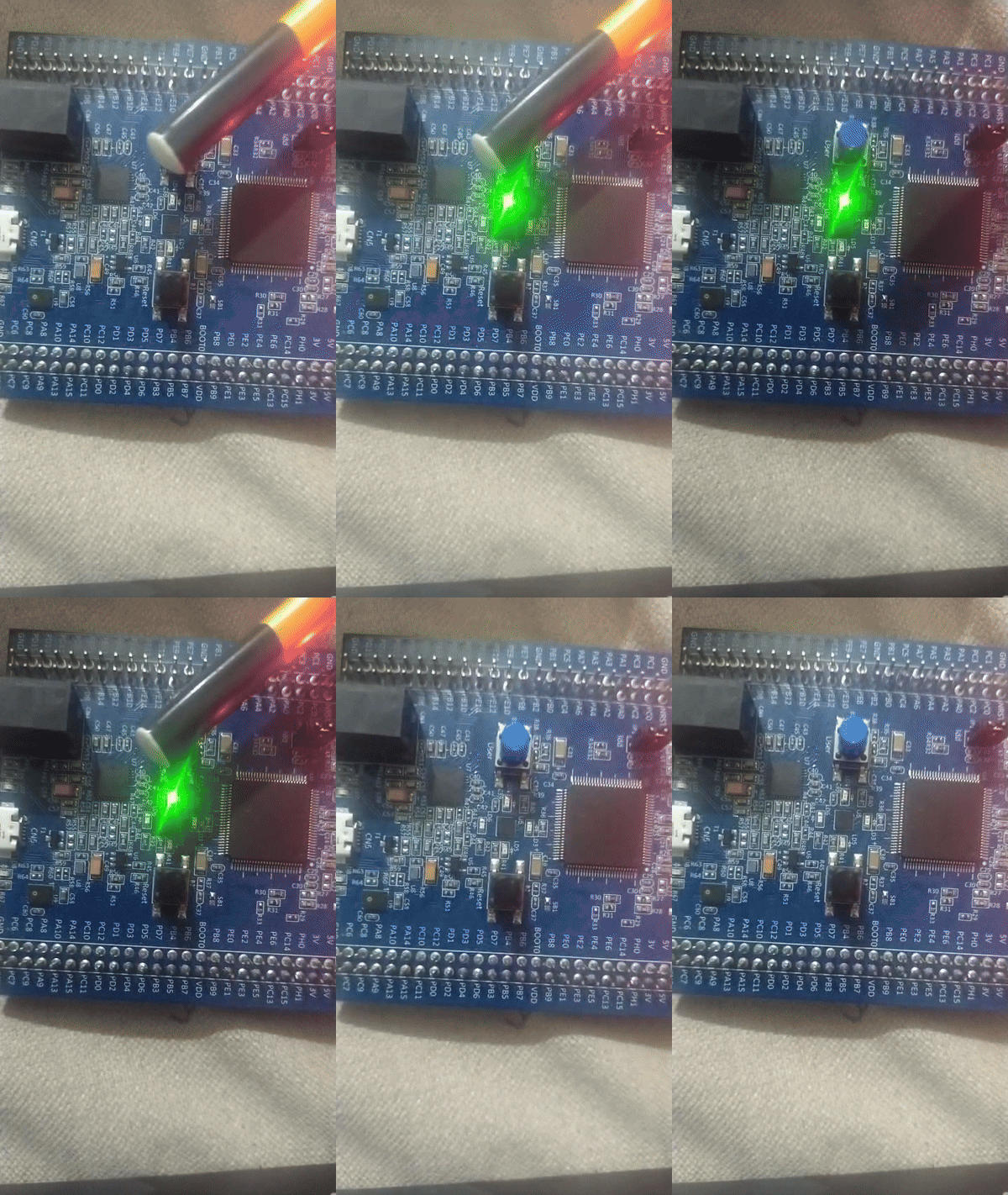
Smooth, reliable button control without false triggers
Complete Code
#define RCC_BASE 0x40023800UL
#define RCC_AHB1ENR *(volatile unsigned int*)(RCC_BASE + 0x30U)

#define GPIO_D_BASE 0x40020C00UL
#define GPIOD_MODER *(volatile unsigned int*)(GPIO_D_BASE + 0x00U)
#define GPIOD_ODR   *(volatile unsigned int*)(GPIO_D_BASE + 0x14U)

#define GPIO_A_BASE 0x40020000UL
#define GPIOA_MODER *(volatile unsigned int*)(GPIO_A_BASE + 0x00U)
#define GPIOA_IDR   *(volatile unsigned int*)(GPIO_A_BASE + 0x10U)

void led_delay(void) {
    for (volatile int i = 0; i < 300000; i++);
}

int main(void) {
    // Enable clocks
    RCC_AHB1ENR |= (1U << 0);  // GPIOA
    RCC_AHB1ENR |= (1U << 3);  // GPIOD

    // PA0 as input
    GPIOA_MODER &= ~(3U << 0);

    // PD12 as output
    GPIOD_MODER &= ~(3U << 24);
    GPIOD_MODER |= (1U << 24);

    while (1) {
        // Detect button press (HIGH)
        if (GPIOA_IDR & (1 << 0)) {
            led_delay();  // Wait for bouncing to settle (~300ms)

            // Confirm press still detected
            if (GPIOA_IDR & (1 << 0)) {
                GPIOD_ODR ^= (1U << 12);  // Toggle LED

                // Wait for button release
                while (GPIOA_IDR & (1 << 0));

                led_delay();  // Debounce release
            }
        }
    }

    return 0;
}
Algorithm Explained
Step 1: Wait for button press
├─ Loop until PA0 = HIGH

Step 2: Wait for bouncing to settle
├─ Delay ~20-50ms (we use 300ms to be safe)

Step 3: Confirm press (not a false bounce)
├─ Check PA0 again
├─ If still HIGH: Button really pressed
├─ If LOW: Was false bounce, go back to Step 1

Step 4: Perform action (toggle LED)
├─ GPIOD_ODR ^= LED

Step 5: Wait for release
├─ Loop while PA0 = HIGH

Step 6: Debounce release
├─ Delay ~20-50ms to let contacts settle

Step 7: Go back to Step 1
Expected Output
User Action:
├─ Press button (once)    → Detect press → Debounce → LED toggles (once)
├─ Release button         → Debounce
├─ Press button again     → LED toggles again
└─ Clean, one-press = one-toggle behavior
Difference from Lab 3: LED only toggles once per press, not continuously while held.
Common Mistakes
| Issue | Solution |
|---|---|
| LED toggles multiple times per press | Debounce delay too short (increase to 300000) |
| LED responds to noise/glitches | Confirm button state twice |
| Button lag | Delay too long - reduce iterations |
| Won't detect releases | Check while loop condition |
Key Takeaways
✨ Remember:
- Real buttons bounce - they're not ideal switches
- Wait after detecting press to let bouncing settle
- Confirm state again after waiting
- Wait for release before accepting another press
- 20-50ms debounce is typical (we use longer to be safe)
Challenge Exercises
Challenge 1: Debounce Both Edges
Debounce both the press AND release edges separately.
Challenge 2: Count Button Presses
Count how many times button was pressed and display count using LEDs.
Challenge 3: Long Press Detection
Detect if button held for 1 second, perform different action.
Next Steps
🚀 Ready for Lab 5? Learn to display binary numbers on LED arrays using bit manipulation!
Prerequisites for Lab 5: GPIO output control for multiple pins, Bitwise operations