Day 5 Build: Give It Skills
This is the user-facing guide for Day 5. Today you do the skill flow in stages. First you inspect a public skill. Then you install it. Then you create one small skill of your own.
The operational steps are split between this file and a few small instruction files. This file is for you. The instruction files are for your Claw.
What You Need Before Starting
- Day 1 complete: OpenClaw installed and secured
- Day 2 complete: identity files created and loading correctly
- Day 3 complete: Telegram connected and working
- Day 4 complete: a proactive workflow already exists
- Access to your Claw through the web chat
- Telegram on your phone
How To Run Day 5
Work through the files in this order:
- inspect
document-summaryin chat claw-instructions-install-document-summary.mdclaw-instructions-create-quick-note-skill.mdclaw-instructions-finalize-skills.md
This order gives you the full picture: how to inspect a public skill, how to install one safely, and how to teach your Claw one behavior of your own.
Step 1: Inspect a ClawHub Skill
Copy and paste the following message into the web chat:
Inspect
document-summaryfrom ClawHub, explain in plain English what it does, what kinds of requests should trigger it, whether it needs any credentials or extra binaries, and anything that looks risky or out of scope. Do not install anything yet.
Today's ClawHub skill example is document-summary. It is a good Day 5 starting point because it adds a reusable workflow without asking you to set up another account, secret, or API key first.
Step 2: Install document-summary
After you are happy with the inspection, copy and paste this into the web chat:
Read
https://raw.githubusercontent.com/aishwaryanr/awesome-generative-ai-guide/main/free_courses/openclaw_mastery_for_everyone/days/day-05-give-it-skills/claw-instructions-install-document-summary.mdand follow every step. Installdocument-summaryinto this workspace, tell me how to trigger it, and stop when you're done.
claw-instructions-install-document-summary.md tells the Claw to:
- install
document-summaryinto this workspace after confirmation - verify where it landed and whether it is ready
- tell you the exact request patterns to use from Telegram or web chat
- tell you to type
/newin OpenClaw before trying to use the new skill
This is the first half of Day 5. You borrow one good workflow instead of rebuilding it from scratch.
If you want a visual check, open Skills in OpenClaw. Installed workspace skills show up there once they have been added:
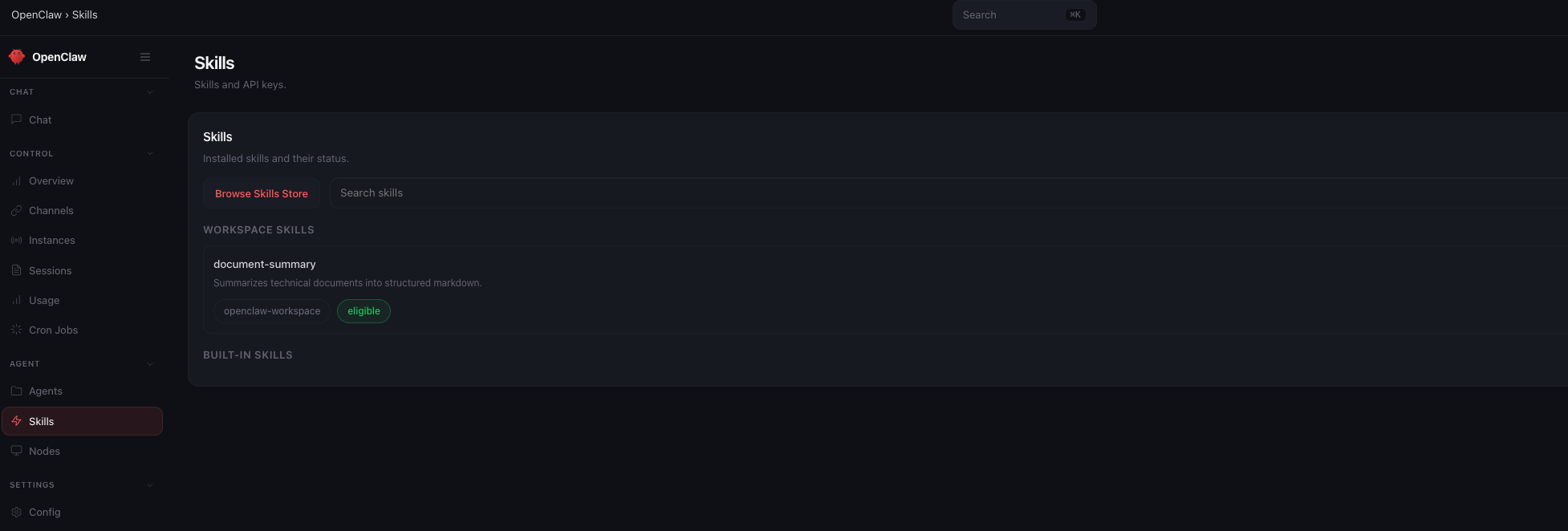
After this step, type /new in OpenClaw to start a fresh session before you continue.
Step 3: Create quick-note
After document-summary is installed, copy and paste this into the web chat:
Read
https://raw.githubusercontent.com/aishwaryanr/awesome-generative-ai-guide/main/free_courses/openclaw_mastery_for_everyone/days/day-05-give-it-skills/claw-instructions-create-quick-note-skill.mdand follow every step. Createquick-notein this workspace, tell me how to trigger it, and stop when you're done.
claw-instructions-create-quick-note-skill.md tells the Claw to create one small custom skill that:
- triggers on
note: - classifies the note before saving it
- stores a clean timestamped entry in
memory/YYYY-MM-DD.md - adds an open-loop item when the note implies future action
- replies with a short confirmation
This is the second half of Day 5. You teach your Claw one behavior that is specific to how you work.
After this step, type /new in OpenClaw to start a fresh session before you continue.
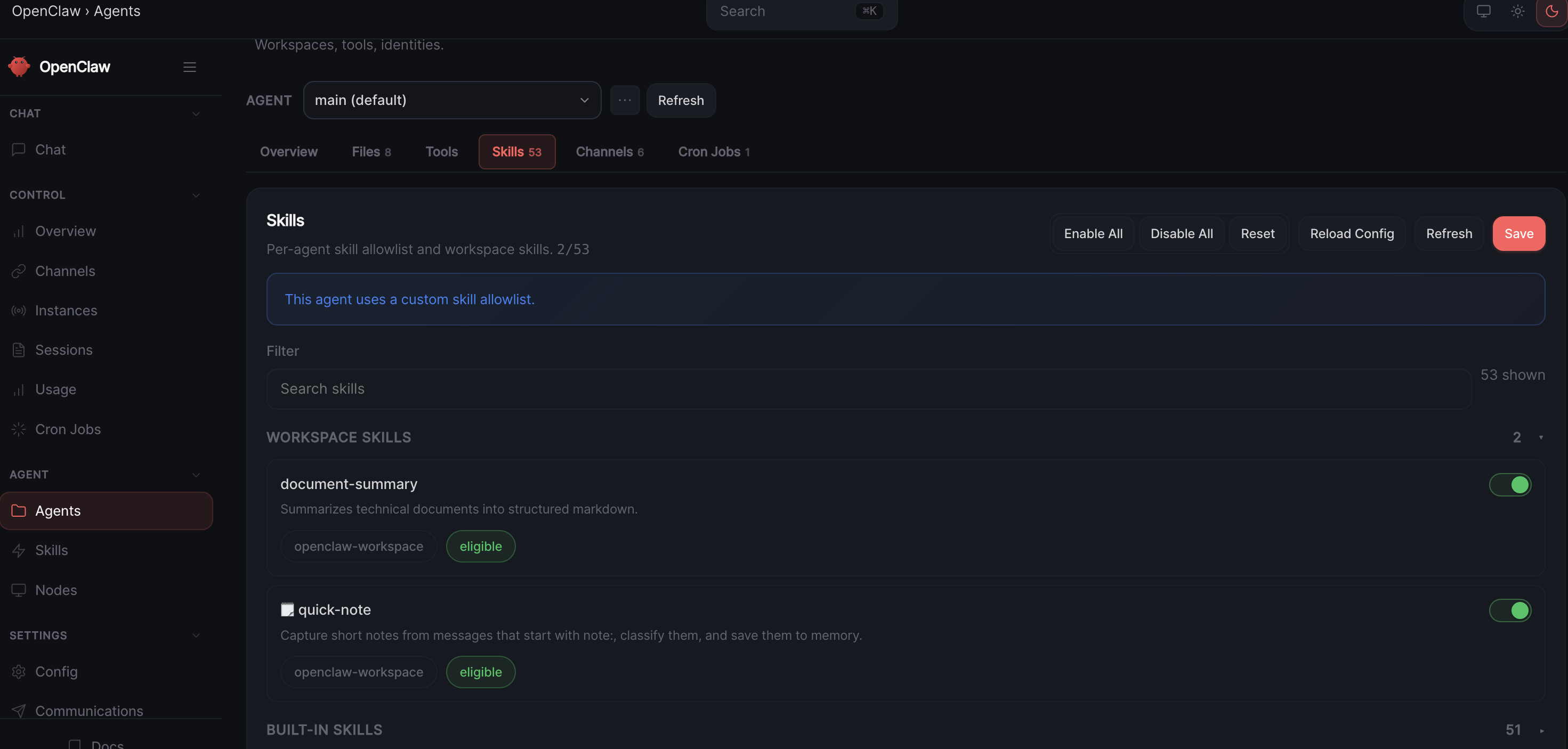
[!WARNING] Do an additional check on the OpenClaw Web interface, go to
Agents --> Skillsand make sure that the skills are enabled.
Step 4: Finalize and Verify
After quick-note is created, copy and paste this into the web chat:
Read
https://raw.githubusercontent.com/aishwaryanr/awesome-generative-ai-guide/main/free_courses/openclaw_mastery_for_everyone/days/day-05-give-it-skills/claw-instructions-finalize-skills.mdand follow every step. Verify both skills, tell me the exact test message for each one, and report PASS or FAIL.
That instruction file tells it to:
- confirm both skills are present
- remind you that Day 5 skills are used from a fresh session after
/new - give you the exact message to test each skill
- report PASS or FAIL for the Day 5 setup
At that point, your Claw has one reusable workflow from the community and one you created together.
Validate It
Ask your Claw in the web chat:
Tell me the two skills we set up today, where each one lives, the exact message I should send to test each one, and whether I need a fresh session before they are active.
The answer should clearly name document-summary, quick-note, their locations, the trigger phrases, and remind you to use /new before testing newly added skills.
Quick Win
From Telegram, send one real note: message that implies future action. Then paste a link or a short block of text and ask for a summary. This is the Day 5 shift: your Claw now carries one reusable workflow from the community and one you taught it yourself, and your custom skill is doing more than dumping raw text into a file.
What Should Be True After Day 5
- [ ]
document-summarywas inspected before install - [ ]
document-summarywas installed for this workspace - [ ]
quick-noteexists as a custom workspace skill with its ownSKILL.md - [ ]
quick-notecan classify notes and track open loops when needed - [ ] You know the exact trigger or request to use for both skills
- [ ] You started a fresh OpenClaw session with
/newbefore testing the new skills - [ ] Both skills are scoped to this agent unless you chose otherwise
Troubleshooting
The Claw starts doing everything in one shot Tell it to stop and stay inside the current Day 5 step. The point is to inspect, install, create, and verify in sequence.
The inspection feels vague
Ask it to explain document-summary in plain English: what it does, what should trigger it, and what it depends on.
The custom skill description feels fuzzy
Ask the Claw to rewrite it around the exact note: trigger you plan to send from Telegram.
The skill does not seem available yet
Type /new in OpenClaw to start a fresh session, then test again.